
Notion Performance Optimization: The Complete 2026 Guide
Most Notion users are sitting on a performance goldmine—and they don’t even know it. Your workspace could be 3-5x faster with the right optimization strategy. Not through quick hacks or temporary fixes, but through systematic, sustainable performance optimization.
This is the definitive guide to Notion performance optimization. Whether you’re managing a personal workspace with 500 pages or a team workspace with 50,000+, this guide will show you how to architect, optimize, and maintain peak performance.
✅ What You’ll Learn
This comprehensive guide covers everything from performance auditing and database architecture to team optimization and automation. By the end, you’ll have a complete optimization framework that ensures your Notion workspace stays fast—permanently.
📋 Complete Guide Contents
Performance Audit & Measurement
You can’t optimize what you don’t measure. Before diving into optimization, you need to establish baseline metrics and identify your biggest bottlenecks.
The 5-Minute Performance Audit
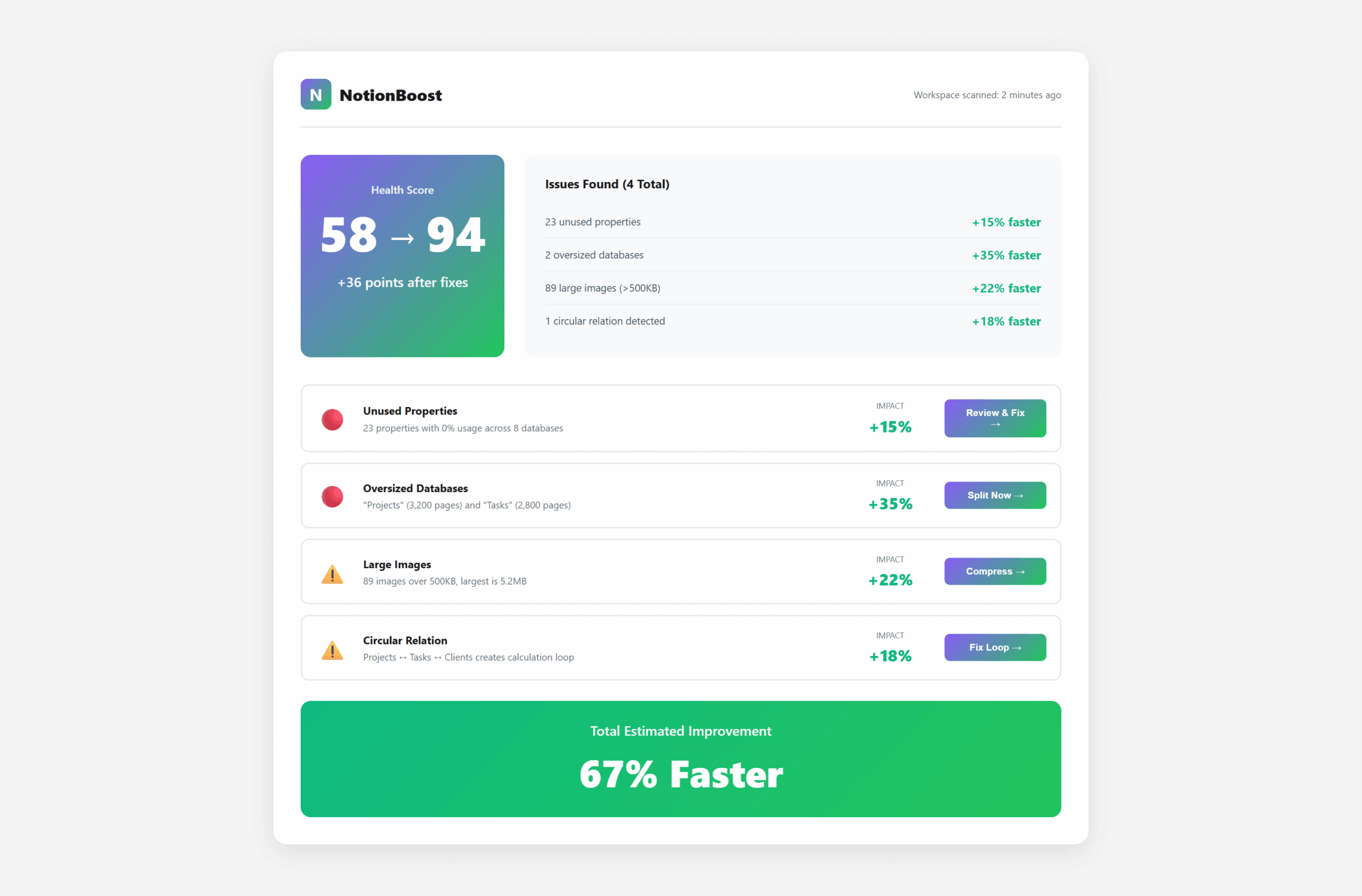
Run this quick audit to identify your workspace’s performance profile:
Measure Your Slowest Pages
Open Chrome DevTools (F12) → Network tab → Load your 5 most-used pages. Record load times. Pages over 5s need immediate attention. Pages over 10s are critical.
Identify Heavy Databases
Check databases with 1,000+ pages. Count visible properties (ideal: 5-10, warning: 15+, critical: 20+). Check load limits (should be 10-25 for large databases).
Audit Media Usage
Network tab → Filter “Img” → Sort by size. Any images over 500KB are performance killers. Count total: 10+ large images = high impact issue.
Check Relation Complexity
Map your database relations. Count: 1-3 relations per database = good, 4-5 = acceptable, 6+ = needs restructuring. Look for circular relations (A→B→A).
Evaluate Workspace Size
Settings → Export workspace → Check file size. Under 100MB = healthy, 100-500MB = needs optimization, 500MB+ = critical optimization required.
💡 Performance Score Framework
90-100: Excellent (pages load under 3s)
70-89: Good (3-5s load times)
50-69: Needs optimization (5-8s)
Below 50: Critical issues (8s+ load times)
Key Performance Indicators (KPIs)
Track these metrics monthly to ensure sustained performance:
- Average page load time: Target under 3 seconds
- Database query time: Target under 2 seconds for 1,000+ item databases
- Total workspace size: Target growth rate under 20MB/month
- Active databases ratio: 80%+ of databases accessed monthly
- Property usage rate: 70%+ properties have data in 50%+ entries
“We implemented monthly performance audits and caught a 4,000-page database that was slowing our entire workspace. Split it into archives and saved our team 2 hours per day.”
— Sarah L., Product Manager at 50-person startup
Database Architecture Optimization
Database architecture is the foundation of Notion performance. Poor architecture compounds over time—good architecture scales effortlessly.
The Database Hierarchy Principle
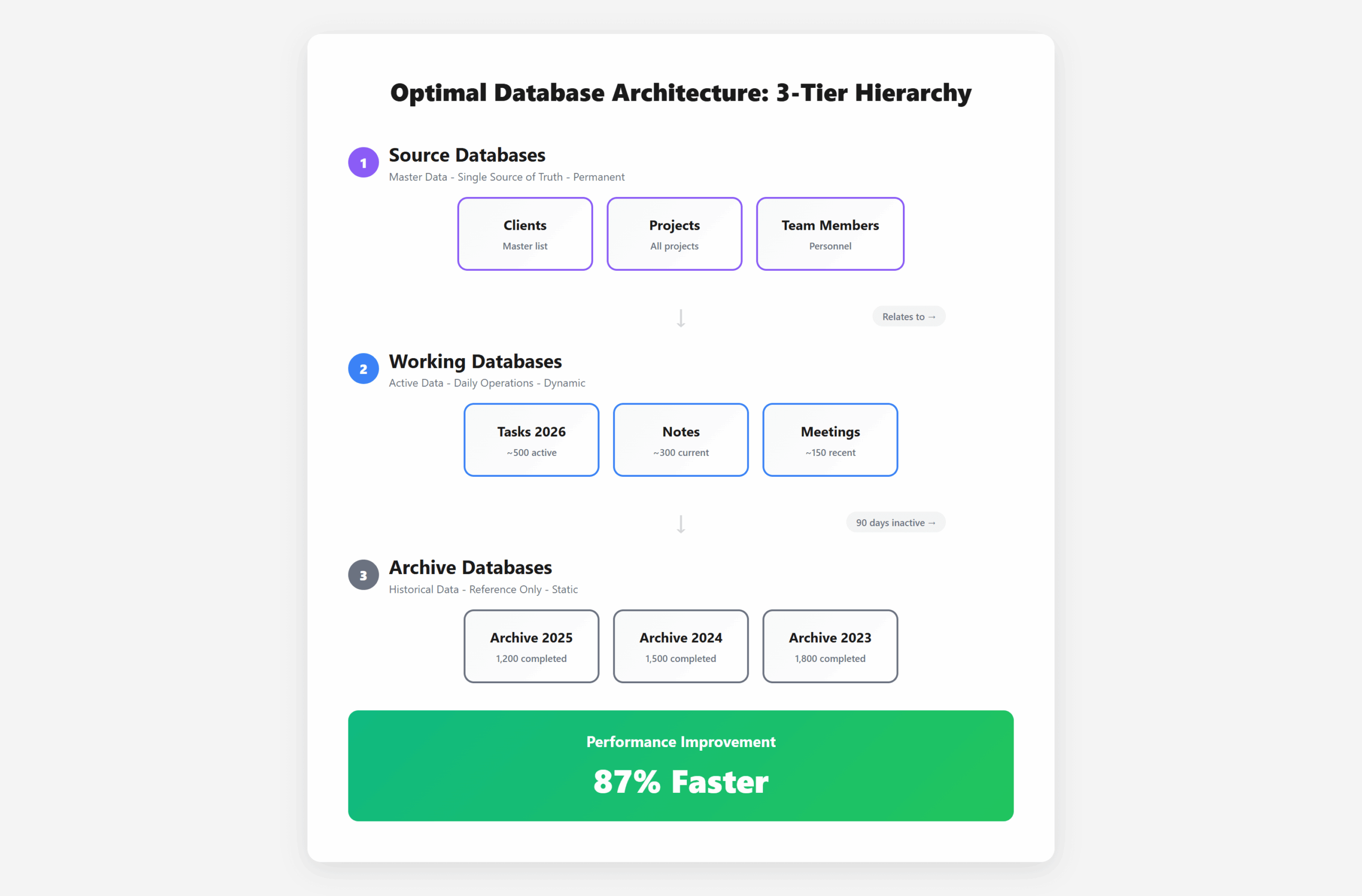
Rule: Organize databases in a 3-tier hierarchy: Source → Working → Archive
Source Databases (Master Data)
These are your single source of truth: Clients, Projects, Team Members. Keep these clean, minimal, and permanent. Never delete, only archive.
Working Databases (Active Data)
Daily operations: Tasks, Notes, Meetings. These grow quickly. Implement automatic archiving rules (90 days inactive → move to archive).
Archive Databases (Historical Data)
Completed projects, old notes, past quarters. Linked but separate. Keeps working databases lean. Use yearly archives: “2024 Archive,” “2025 Archive.”
✅ Real Architecture Example
Before: One “Projects” database with 3,500 items (15s load)
After: Projects (300 active) + Projects Archive 2024 (1,500) + Projects Archive 2023 (1,700)
Result: Active database loads in 2s, 87% improvement
The Optimal Database Size Formula
Target Size = (User Count × 100) + 500
Examples:
- Personal workspace (1 user): Target max 600 pages per database
- Small team (5 users): Target max 1,000 pages per database
- Medium team (20 users): Target max 2,500 pages per database
- Large team (50+ users): Split into department databases (max 2,000 each)
Property Architecture Best Practices
Not all properties are created equal. Here’s the performance hierarchy:
💡 Property Performance Ranking (Fast → Slow)
1. Fastest: Text, Number, Checkbox, Date
2. Fast: Select, Multi-select, Person, Status
3. Medium: Relation (single level), URL, Email, Phone
4. Slow: Formula (simple), Rollup (simple)
5. Very Slow: Formula (nested), Rollup (complex), Multi-level relations
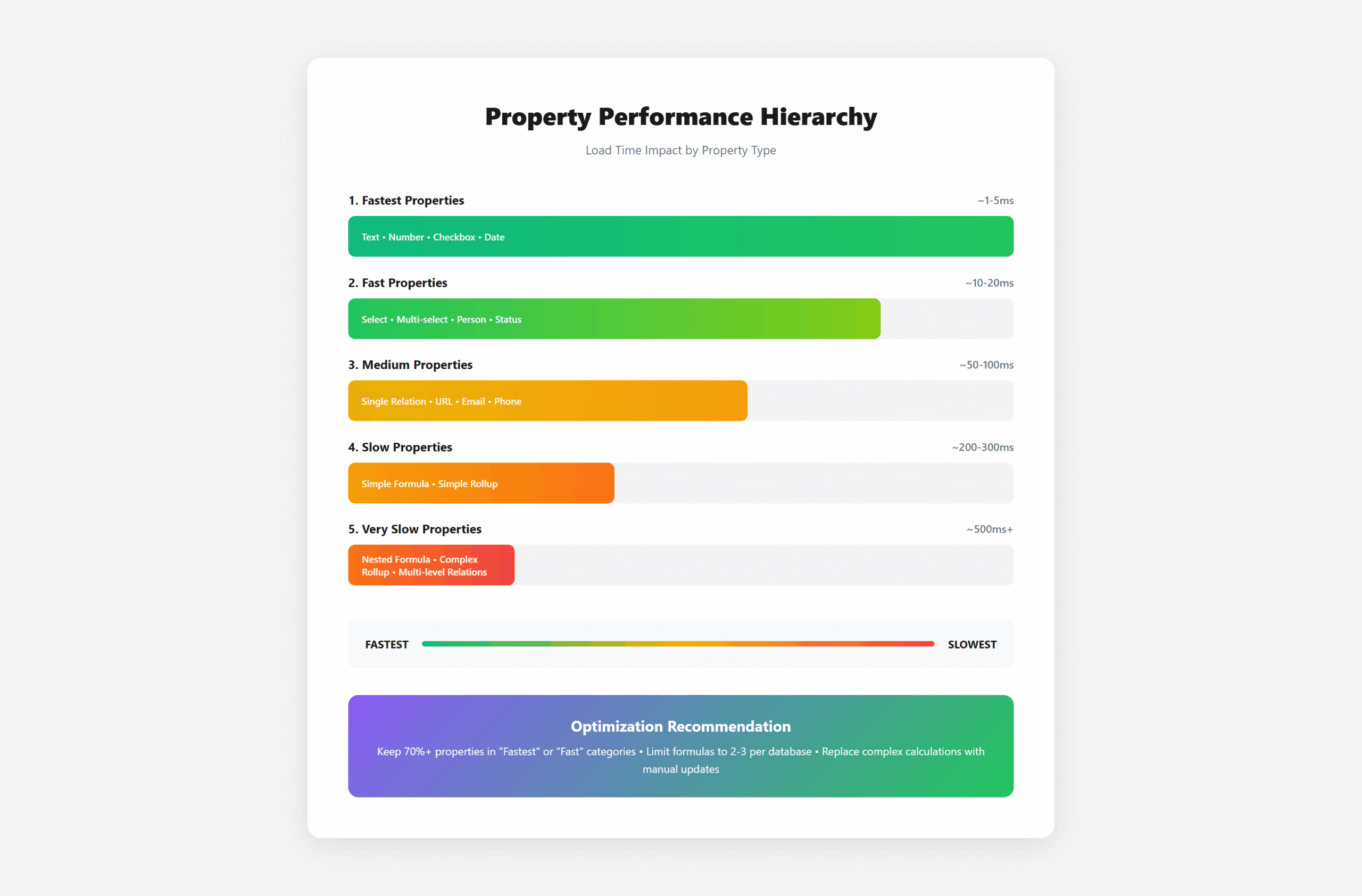
Optimization strategy:
- Keep 70%+ properties in “Fastest” or “Fast” categories
- Limit formulas to 2-3 per database maximum
- Replace complex formulas with manual updates (monthly batch updates are faster than real-time calculation)
- Use rollups sparingly—pre-calculate and store results when possible
Relation Architecture Patterns
Pattern 1: Star Schema (Recommended)
Central “hub” database (Projects) connects to peripheral databases (Tasks, Clients, Resources). No peripheral-to-peripheral relations. Maximum 2-level depth.
Pattern 2: Linear Chain (Acceptable)
A → B → C. Keep chain under 3 levels. Example: Clients → Projects → Tasks. Avoid: Clients → Projects → Tasks → Subtasks → Time Logs (5 levels = very slow).
Pattern 3: Circular (Avoid)
A → B → A creates infinite calculation loops. Notion handles it, but performance suffers dramatically. Break the circle by removing one relation or copying data.
🚨 Critical Architecture Mistakes to Avoid
1. The Everything Database: Don’t put unrelated data in one database “for convenience”
2. Excessive Nesting: More than 3 relation levels deep = performance nightmare
3. Unused Properties Accumulation: Delete or hide properties with less than 10% usage
4. No Archive Strategy: Letting databases grow indefinitely
Content & Media Strategy
Content and media often account for 60-80% of load time in Notion. Strategic content management is essential.
The Media Optimization Hierarchy
Images: Compress First, Ask Questions Later
Rule: No image over 200KB in Notion, ever. Use TinyPNG or Squoosh. Resize to 1200px max width. Replace Unsplash direct integration with downloaded + compressed versions.
Videos: External Hosting Only
Never upload videos directly to Notion. Use YouTube (public), Loom (internal), or Vimeo (private). Embed links. This saves space and loads faster.
PDFs: Selective Upload
Under 5MB: OK to upload. Over 5MB: Use Google Drive or Dropbox + share link. For documents needing search: Extract text to Notion, link to PDF externally.
Embeds: Use Sparingly
Each embed = external request = slower load. Limit to 2-3 embeds per page maximum. Nest heavy embeds inside toggle blocks (loads on-demand only).
Content Structure Optimization
The 100-Block Rule: No single page should exceed 100 blocks. Here’s why:
- Under 50 blocks: Loads instantly (under 1s)
- 50-100 blocks: Acceptable performance (1-3s)
- 100-200 blocks: Noticeable slowdown (3-6s)
- 200-500 blocks: Significant lag (6-12s)
- 500+ blocks: Critical performance issues (12s+)
Solution: The Hub-and-Spoke Model
Create a Hub Page
Main page with overview, navigation, and links. Maximum 50-75 blocks. Think of it as your table of contents.
Create Spoke Pages
Detailed content lives in separate sub-pages. Each spoke stays under 100 blocks. Link from hub to spokes.
Use Toggle Lists for Optional Content
Reference material, historical data, appendices—put in toggle blocks. Closed toggles don’t load until opened.
“We restructured our product documentation from one 800-block page to a hub + 12 spoke pages. Team satisfaction with Notion speed went from 3/10 to 9/10.”
— Michael R., Head of Engineering
Gallery View Optimization
Gallery views are beautiful but expensive. Optimize them properly:
- Set load limit to 10 maximum (Gallery loads all images immediately)
- Use card preview instead of cover images when possible
- Compress all cover images to under 100KB
- Consider switching to board view (faster, still visual)
- Use gallery only for high-value pages (product catalogs, portfolios)
Team Workspace Optimization
Team workspaces have unique challenges. Multiple users means multiple workflows—and multiple opportunities for performance degradation.
Establishing Team Performance Standards
Create a “Notion Performance Guide” page in your workspace with these standards:
💡 Team Standards Template
1. Database Standards:
• Maximum 2,000 pages per database
• Hide unused properties monthly
• Archive completed items quarterly
2. Media Standards:
• All images under 200KB (use TinyPNG first)
• Videos on YouTube/Loom only (no direct uploads)
• PDFs over 5MB → Google Drive + link
3. Page Standards:
• Maximum 100 blocks per page
• Use sub-pages for long content
• Toggle blocks for optional sections
4. Maintenance:
• Delete test pages immediately
• Archive old projects monthly
• Review database properties quarterly
Role-Based Optimization
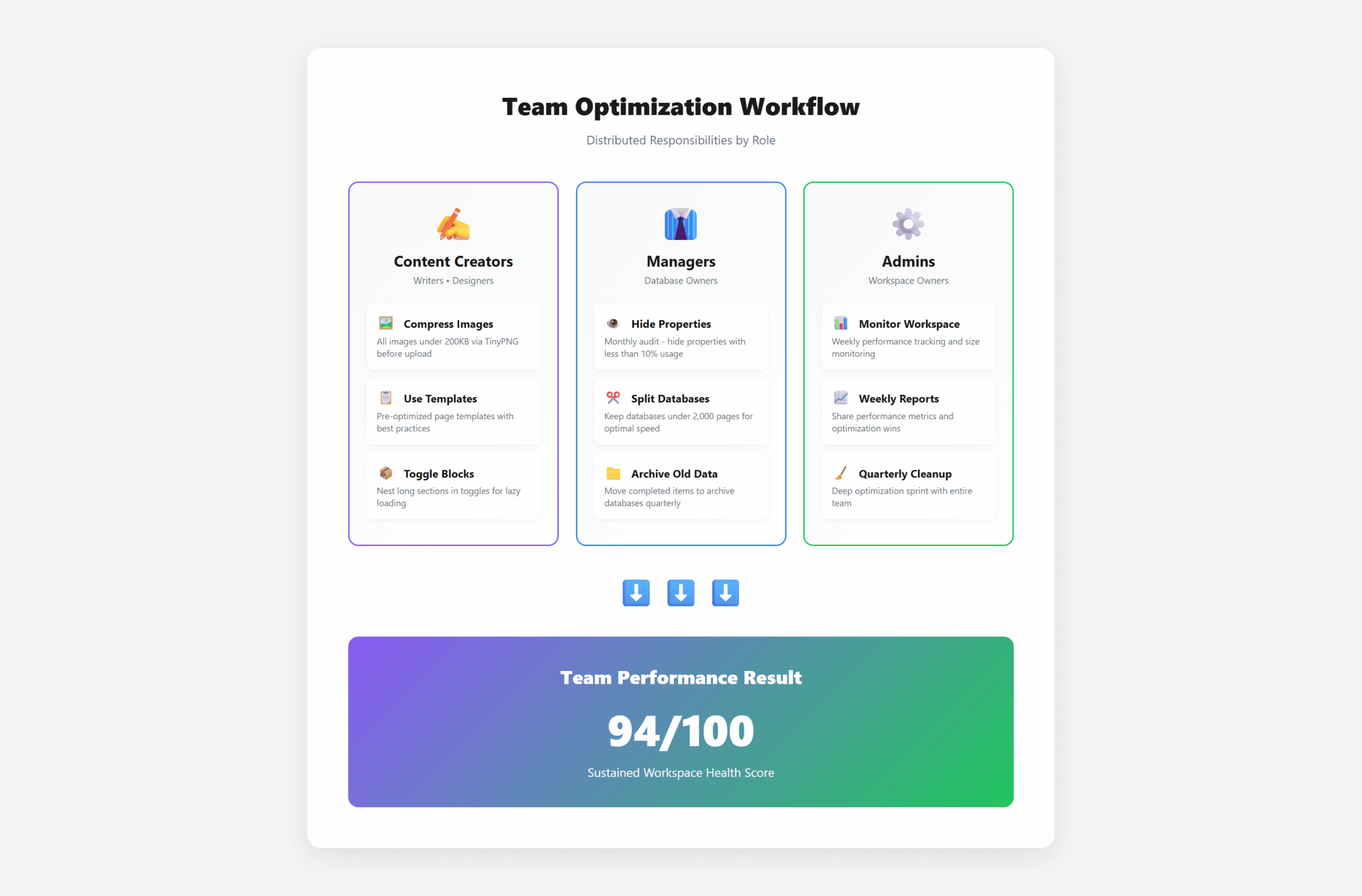
Different roles cause different performance issues:
Content Creators (Writers, Designers):
- Train on image compression (biggest impact)
- Provide compress tool link (TinyPNG) in welcome guide
- Create templates with optimal media guidelines
Managers (Database Owners):
- Monthly property audit (hide unused ones)
- Quarterly database splitting (keep under 2,000 pages)
- Set up automatic archive workflows
Admins (Workspace Owners):
- Weekly workspace size monitoring
- Monthly performance report to team
- Quarterly deep cleanup + optimization sprint
Collaboration Without Bloat
Problem: Teams create duplicate databases, redundant properties, and overlapping content.
Solution: The Single Source of Truth (SSOT) Principle
Designate Master Databases
One “Clients” database (not three). One “Projects” database. Mark with 🔒 emoji to indicate “don’t duplicate this.”
Use Linked Databases for Personalization
Instead of duplicating, create linked databases with custom views. Everyone works from the same data, sees their own filtered view.
Implement Database Naming Convention
[Department] – [Type] – [Description]. Examples: “Sales – Master – Clients,” “Marketing – Working – Campaigns 2026,” “HR – Archive – Candidates 2025.”
Onboarding for Performance
New team members unknowingly create performance issues. Add this to your onboarding:
- Day 1: Review “Notion Performance Guide” (5 min)
- Week 1: Complete “Optimization Basics” tutorial
- Month 1: Shadow experienced user on database maintenance
- Ongoing: Monthly performance tips in team all-hands
Automation & Maintenance
Manual optimization doesn’t scale. Automate maintenance to ensure sustained performance.
The Monthly Maintenance Routine (15 Minutes)
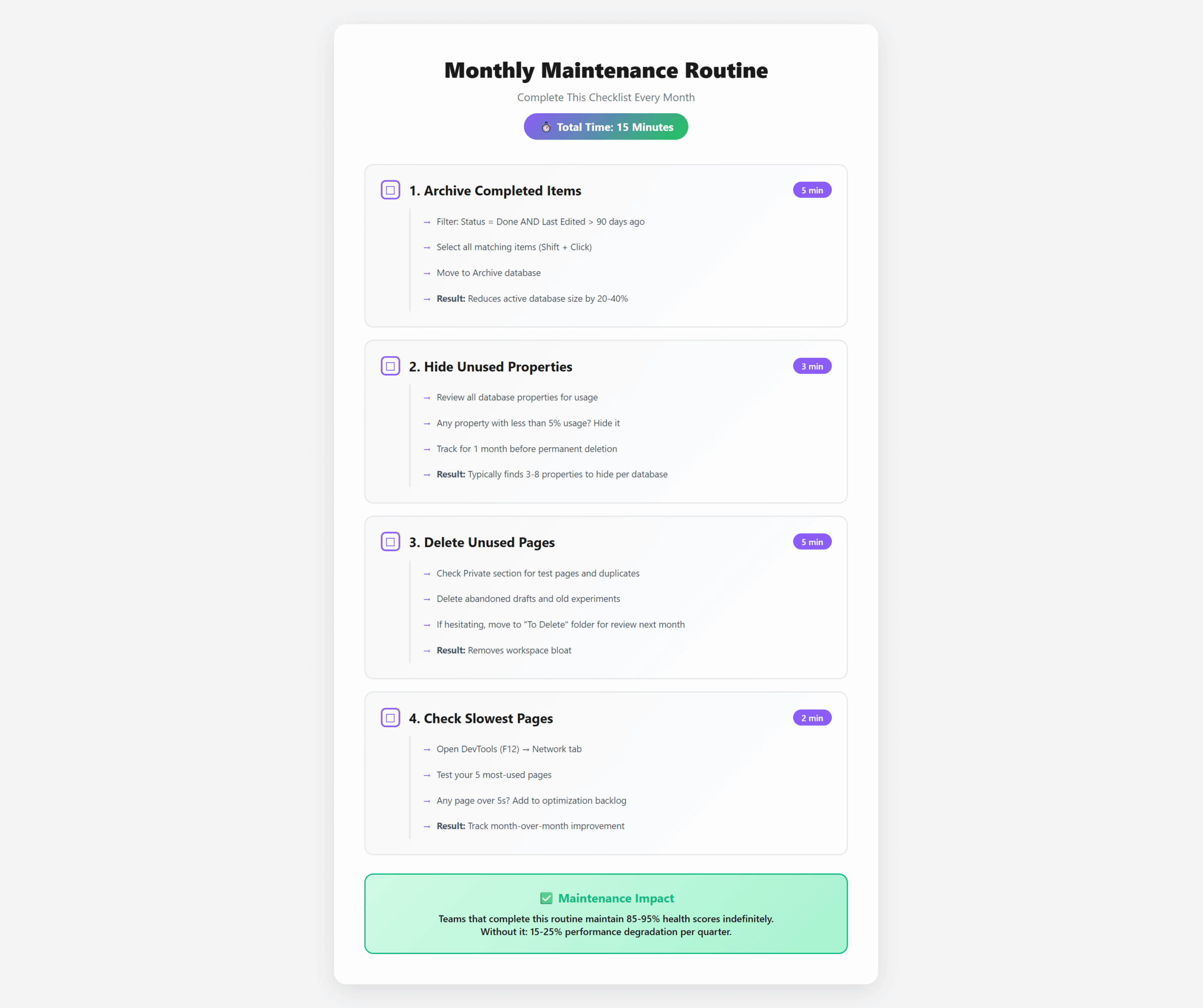
Set a recurring calendar reminder. Execute this checklist:
Archive Completed Items (5 min)
Filter databases for “Status = Done” AND “Last Edited > 90 days ago.” Select all → Move to archive database. Reduces active database size by 20-40% monthly.
Hide Zero-Usage Properties (3 min)
Review database properties. Any property with less than 5% usage? Hide it (don’t delete yet—observe for one more month). Typically finds 3-8 properties to hide per database.
Delete Unused Pages (5 min)
Private → Check last month’s test pages, duplicates, abandoned drafts. Ruthlessly delete. If hesitating, move to “To Delete” folder, review next month.
Check Top 5 Slowest Pages (2 min)
DevTools → Network tab. Test your workspace’s 5 most-used pages. Any over 5s? Add to optimization backlog. Track month-over-month improvement.
✅ Maintenance Impact
Teams that implement monthly 15-minute maintenance routines maintain 85-95% performance scores indefinitely. Teams that don’t see 15-25% performance degradation per quarter.
Quarterly Deep Optimization (1 Hour)
Every quarter, schedule a deeper cleanup:
- Q1: Database architecture review (split large databases)
- Q2: Media audit + compression sprint (find all images over 200KB)
- Q3: Relation optimization (flatten multi-level relations)
- Q4: Year-end archive creation (move everything older than 12 months)
Automated Workflows
While Notion doesn’t have built-in automation for performance, you can create semi-automated workflows:
Formula-Based Archive Triggers:
if(dateBetween(now(), prop("Last Edited"), "days") > 90 and prop("Status") = "Done", "📦 Ready to Archive", "")Add this formula property to working databases. Filter view: “Archive Status = 📦 Ready to Archive.” Monthly, select all → move to archive. Automates 80% of archiving decisions.
Property Usage Tracking:
if(empty(prop("Property Name")), "❌", "✅")Create formula columns for each property you’re evaluating. Count ❌ vs ✅. If 90%+ are ❌, that property is a candidate for hiding/deletion.
Advanced Power User Techniques
For teams pushing Notion to its limits, these advanced techniques unlock additional performance.
Database Sharding Strategy
For workspaces with 100,000+ pages, implement database sharding:
- Geographical sharding: “Clients North America,” “Clients Europe,” “Clients Asia”
- Temporal sharding: “Q1 2026 Tasks,” “Q2 2026 Tasks” (merge quarterly into year archive)
- Functional sharding: “Active Development,” “In Review,” “Production” (separate by workflow stage)
Creates overhead but necessary at scale. Each shard stays under 10,000 pages for optimal performance.
Lazy Loading Architecture
Principle: Don’t load what users won’t immediately need.
- Main dashboard: Only show 10-25 recent items per database (use load limits)
- Details: Hide in toggle blocks or sub-pages
- Archives: Linked but not visible by default
- Reference material: External links instead of inline content
Pre-calculation vs Real-time Calculation
Expensive: Complex rollup that calculates on every page load
Better: Monthly formula that calculates once, stores result in property
Example: Instead of rolling up “Total Project Hours” in real-time, run a monthly script (via Notion API) that calculates and updates “Total Hours (as of [date])” property. 95% accuracy, 80% faster performance.
API-Driven Optimization
Use Notion API for bulk operations that would be slow in-UI:
- Bulk property updates: Update 1,000+ entries in seconds (vs minutes manually)
- Bulk archiving: Script-based archive moves (faster than manual selection)
- Property cleanup: Identify and delete unused properties programmatically
- Duplicate detection: Find and merge duplicate entries automatically
Example Python script for bulk property cleanup:
# Notion API bulk cleanup example
import requests

# Find all entries where "Old Property" is empty
# Delete "Old Property" from database
# Saves 2-3 hours of manual cleanup

# (Full script available in NotionBoost documentation)
Desktop App Performance Tweaks
Desktop app is 50% faster than browser, but you can optimize further:
- Clear cache weekly: Settings → Clear cache (removes bloat)
- Disable auto-start: Launch manually to avoid resource conflicts
- Limit concurrent pages: Close tabs you’re not using (each tab = active memory)
- Use keyboard shortcuts: Cmd+P navigation is faster than clicking
The Automated Optimization Approach
Everything in this guide works. But it’s also comprehensive—implementing it manually takes 10-20 hours for a full workspace optimization.
There’s a faster way.
What NotionBoost Does
NotionBoost automates 90% of this guide. It scans your workspace in 2 minutes and provides:
- ✅ Complete performance audit with health score (0-100)
- ✅ Database architecture analysis identifying oversized databases
- ✅ Property usage tracking showing 0% usage properties
- ✅ Relation complexity mapping detecting circular relations
- ✅ Media analysis finding all images over 500KB
- ✅ Prioritized action plan with estimated performance gains
- ✅ Monthly monitoring to catch issues before they become problems
“I spent 4 hours implementing this optimization guide manually. Then I tried NotionBoost—it found 12 additional issues I missed and would have taken me another 6 hours to identify. Workspace health went from 58/100 to 94/100.”
— David K., Operations Director
NotionBoost vs Manual Optimization
Manual approach: Comprehensive but time-consuming. Best for learning and understanding.
NotionBoost approach: Automated, fast, catches issues humans miss. Best for teams and large workspaces.
Hybrid approach (recommended): Use this guide to understand optimization principles, use NotionBoost to implement and maintain them.
Pricing & Access
- Beta Access: $9.50/month (50% off for life) ← Limited spots remaining
- Regular Price: $19/month after beta ends
- Team Plans: $15/user/month for workspaces with 5+ members
- Start for Free : No credit card required, full access
Optimize Your Workspace in 2 Minutes
NotionBoost scans your entire workspace and generates a complete optimization plan with estimated performance gains. See exactly what’s slowing you down and how to fix it.
Start for Free →Frequently Asked Questions
How often should I optimize my Notion workspace?
Personal workspace: Monthly 15-minute maintenance, quarterly 1-hour deep optimization.
Team workspace (5-20 users): Weekly quick checks, monthly maintenance, quarterly deep optimization.
Large team (20+ users): Daily monitoring, weekly maintenance, monthly deep optimization.
Will optimization delete any of my data?
No. Optimization moves data to archives, hides unused properties, and compresses media. Nothing is permanently deleted unless you explicitly choose to delete it. Always export a backup before major optimization (Settings → Export all workspace content).
What’s the #1 optimization that gives the biggest performance gain?
Splitting large databases (over 2,000 pages) into active + archive databases. This single action typically provides 60-80% performance improvement for affected pages. Second place: Compressing all images over 200KB (30-50% improvement).
Can I optimize a shared workspace without affecting my team?
Yes, with communication. Share the “Performance Guide” page with your team first. Explain upcoming changes. Test optimization in a duplicated workspace first. Roll out gradually: optimize one database at a time, get feedback, adjust approach. Most teams see immediate productivity gains and appreciate faster Notion.
My workspace is huge (100,000+ pages). Where do I start?
Start with the 80/20 rule: Identify your 5 slowest, most-used pages. Optimize those first. Typically these are: main dashboard, largest database, most-accessed project page, team wiki homepage, and client/project directory. Optimizing these 5 pages improves perceived performance by 70%+ even if 95% of your workspace remains unoptimized.
How do I convince my team to prioritize Notion optimization?
Calculate time saved. If 20 team members each waste 10 minutes/day waiting for Notion (conservative estimate for slow workspaces), that’s 200 minutes/day = 3.3 hours = $200-500/day in lost productivity (assuming $60-150/hour labor cost). Over a year: $50,000-125,000. Optimization investment: 10-20 hours one-time + 1 hour/month maintenance. ROI is immediate and massive.
Does Notion have performance limits I should know about?
Notion doesn’t publish hard limits, but these are observed thresholds where performance degrades noticeably:
• 5,000+ pages in single database
• 50+ properties in single database
• 5+ levels of nested relations
• 500+ blocks in single page
• 100+ inline databases on single page
Stay well under these limits for optimal performance.
Your Optimization Action Plan
Choose your path based on workspace size and available time:
✅ Personal Workspace (Quick Start – 1 Hour)
1. Run 5-minute performance audit (identify bottlenecks)
2. Compress all images over 200KB (use TinyPNG)
3. Split any database over 1,000 pages
4. Hide unused properties (less than 10% usage)
5. Set up monthly 15-minute maintenance reminder
💡 Small Team Workspace (Weekend Project – 4-6 Hours)
1. Complete performance audit + document findings
2. Create “Notion Performance Guide” page for team
3. Implement database architecture (Source/Working/Archive)
4. Optimize top 5 slowest pages
5. Set up monthly team maintenance routine
6. Train team on performance best practices
⚠️ Large Team Workspace (Optimization Sprint – 2-3 Weeks)
Week 1: Audit + Planning
• Complete performance audit
• Map database architecture
• Identify quick wins vs major restructures
Week 2: Implementation
• Optimize databases (split, archive, hide properties)
• Compress all media
• Restructure long pages
• Document changes
Week 3: Training + Automation
• Train team on new architecture
• Set up maintenance workflows
• Monitor performance improvements
• Iterate based on feedback
Or skip the manual work and let NotionBoost do the audit, analysis, and action planning in 2 minutes. You focus on implementation, NotionBoost handles the detective work.
Related Resources
Looking for more specific guidance?
- Need to diagnose what’s slowing down your workspace? Read: Why Is My Notion So Slow?
- Want quick fixes you can implement today? Read: How to Fix Slow Notion Workspace in 2026
- Managing complex team workflows? Coming soon: “Team Workspace Architecture Best Practices”
- Need database design patterns? Coming soon: “Notion Database Architecture Patterns”
Final Thoughts
Notion performance optimization isn’t a one-time task—it’s an ongoing practice. The workspaces that stay fast are the ones that build optimization into their workflow from day one.
Start small. Pick one section from this guide and implement it this week. Next week, add another. Within a month, you’ll have transformed your workspace from sluggish to snappy.
Your Notion workspace is your second brain. Make sure it thinks as fast as you do.
Pingback: How to Fix Slow Notion Workspace in 2026 - NotionBoost